
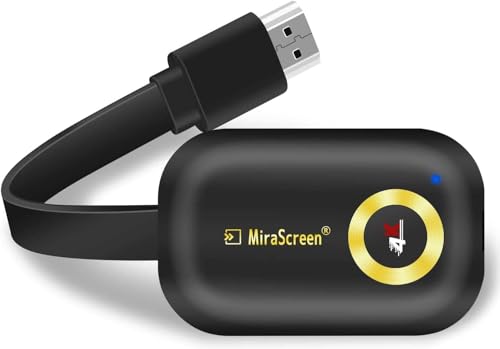
HD Wireless Display Receiver 5G WiFi 4K 1080P Mobile Screen Cast Mirroring Adapter Dongle for iPhone Mac iOS Android to TV Projector Support Miracast Airplay DLNA No Switching (5G+2.4G) (5G WiFi 4K)
Price may vary by location, shipping cost, and availability.
Price History Information
You can check the price history of HD Wireless Display Receiver 5G WiFi 4K 1080P Mobile Screen Cast Mirroring Adapter Dongle for iPhone Mac iOS Android to TV Projector Support Miracast Airplay DLNA No Switching (5G+2.4G) (5G WiFi 4K) here.
Product Information
Details
| Product Name | HD Wireless Display Receiver 5G WiFi 4K 1080P Mobile Screen Cast Mirroring Adapter Dongle for iPhone Mac iOS Android to TV Projector Support Miracast Airplay DLNA No Switching (5G+2.4G) (5G WiFi 4K) |
|---|---|
| Store Product Code | B0FZHNYCNB |
| Store Name | amazon.in |
| Brand | Wefly |
| Category | Streaming Clients |
| Product Manufacturer | WeFly |
| Model Number | Wireless Display Dongle 2.4G WiFi 1080P |
| Model Name | G9 Plus |
| Country of Origin | China |
Features
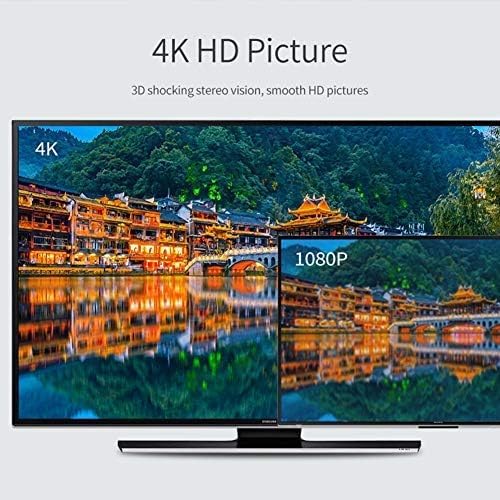
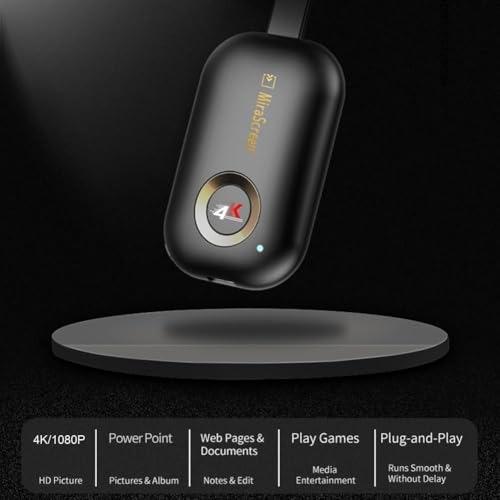
- Upgrade 4K 2.4G High Quality VersionThis new WeFly Wireless display adapter is designed with extending HD cable which solves the shortcome of the first generation. Powered by RAM Dual core chipset. Support H.265/HEVC Decoder, support 4K(3840 X 2160) and 1080P resolution. Support Goo/gle Home App casting on Android device and Goo/gle brower casting on Windows. No Need Switching in Miracast Airplay DLNA Modes.
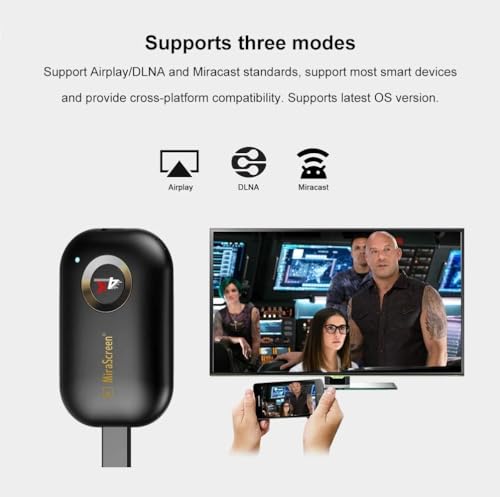
- Wide CompatibilitySupport Miracast/Airplay/DLNA. Compatible with Android 4.4+ and iOS 9.0+, MacOS 10+, Windows 8.1+(must be Miracast enabled, please check that first). While friends gathering or family reunion, you can share photos or videos or movies from phone/tablet to your big screen wirelessly. Share presentation or files on big screen in conference or classroom. Support Netflix/ Amazon Video/ HBO go/ Hulu Plus sky go/DIRECTV etc on Android device. Only uncerypted videos for iOS device.
- Setup for iOS Users1. Connect Mirascreen WiFi on your iOS device. 2.Connect MiraScreen dongle to your home router: Go to Safari and input 192.168.203.1 at the very top searching bar, this step accesses to MiraScreen Setting, connect to your home wifi by Setting "Internet". 3.Go back to confirm your phone is connected to the same wifi. 4. Once all setting done, access Airplay Mirroring on your iOS device and pair with MiraScreen to cast your iOS screen to your TV wirelessly. Now your iOS screen
- Setup for Android/Windows Users For Windows Users, press the short key Win+P on your keyboard and select Connect to a wireless display. Now your small screen will be mirrored to big screen. For Android Users, open Miracast function on your Android device and select Anycast to cast your device to TV directly. Good News to Android Users, this dongle also supports Goo/gle Home App mirroring to play Net/flix, hulu,etc.
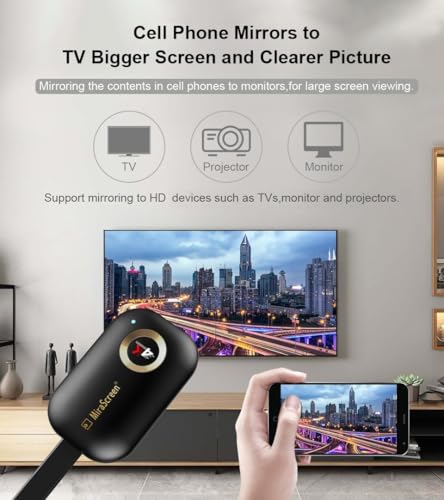
- MOBILE CASTING: Seamlessly mirror content from your mobile device to your TV screen for a larger viewing experience
Images
× ![]()
* Predictions is created on based of past prices and trends, it does not guarantee that it will happen. These are just prediction for theoretical information only.